
Hovering the mouse pointer over the name of an appointment causes two icons to appear, one for opening it in JustRelate CRM, and one for editing some of its properties in the Planning Board. Clicking the pen icon opens the details panel on the right-hand side, which can alteratively be accomplished by clicking the appointment’s time slot.
Adjusting appointments
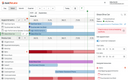
You can open resources in the CRM as well, but they cannot be edited in the Planning Board. Also, neither appointments nor resources can be created or deleted here.
Editing an appointment
To assign a resource to an appointment, simply drag and drop it from the left-hand side of the resources list to the row containing the target appointment.
The details panel allows you to modify some essential properties of the selected appointment, such as its start and end date. The time slot an appointment occupies can also be moved and resized using drag and drop.
Please note that the “Is planned” switch needs to be activated after the appointment concerned has been fully planned. Doing this, releases the appointment.
Resolving multiple use of resources
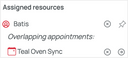
At the bottom, the details panel also indicates resource assignment conflicts, i.e., lists resources that are assigned to two or more overlapping appointments. In such cases, you can detach a resource from the current appointment, or remove an appointment from the multiply assigned resource using the corresponding x button that appears if the mouse pointer hovers over the entry concerned.
Every change you make to an appointment is reflected in JustRelate CRM after a short period of time.